
Details-view listing
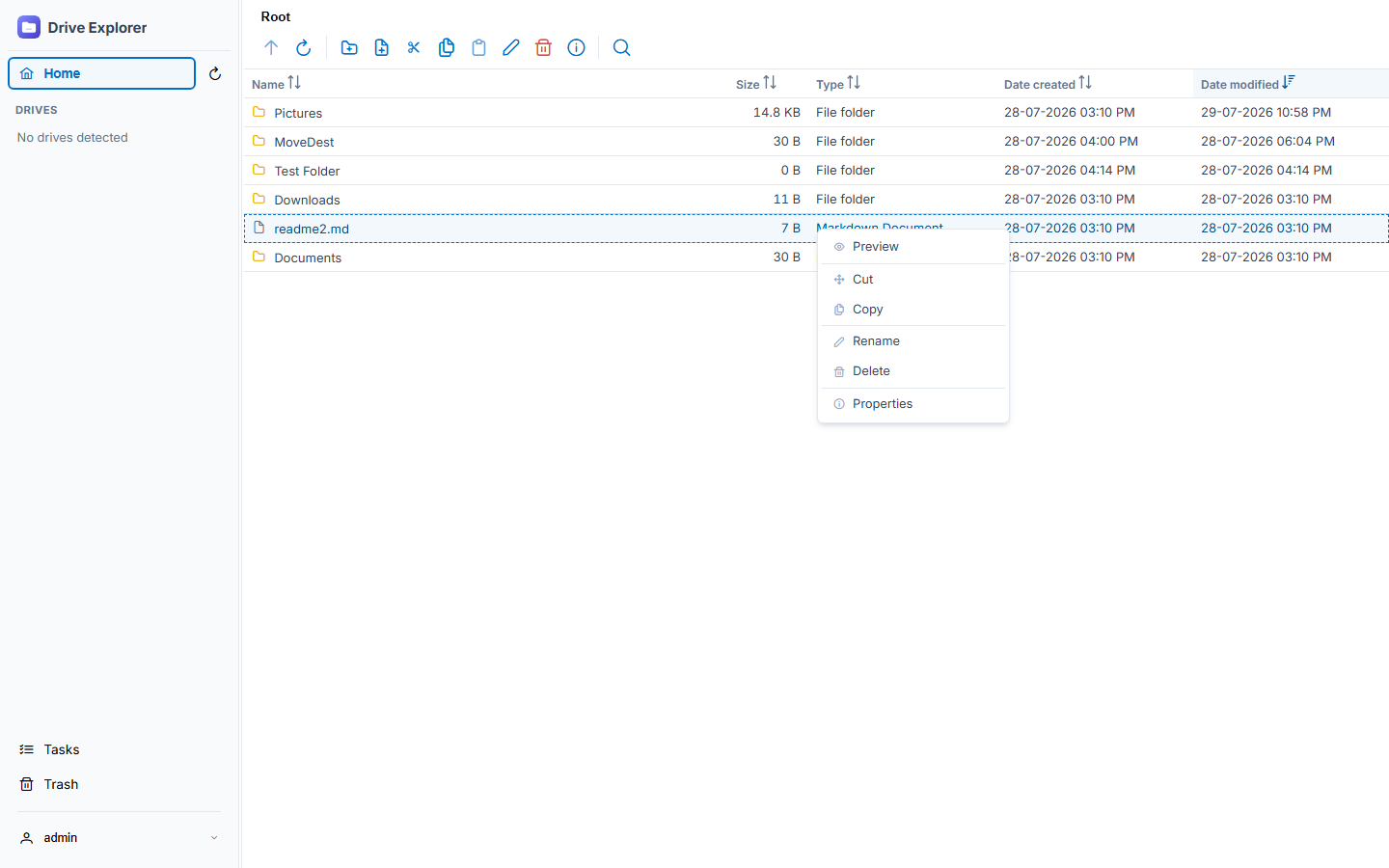
Sortable columns, Windows-style date grouping (Today / Yesterday / Last week…), multi-select via click, Shift/Ctrl, or a mouse rubber-band drag, and a right-click context menu.
An open-source, self-hosted file and drive manager for your Linux server — full filesystem access, hot-pluggable drive mounting, drag-and-drop file and folder uploads, durable background copy/move/delete jobs, a proper Trash, permissions editing, light/dark mode, and keyboard navigation that actually feels native.
Built for admins who live on the terminal — but want a Windows-Explorer-grade UI when they don't.
Not a toy uploader — a Details-view explorer with the operations you'd expect from a desktop OS, running entirely in the browser.
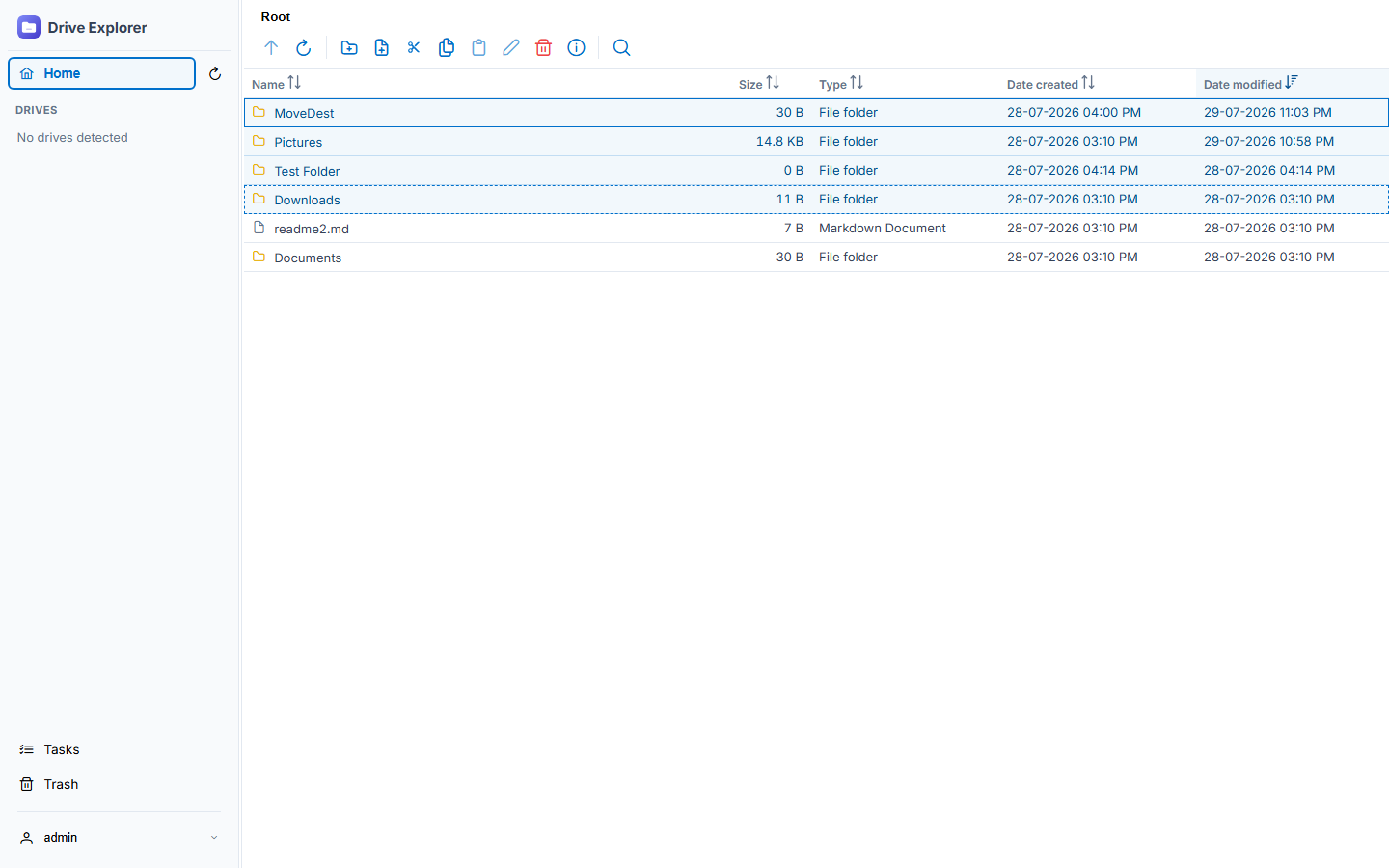
Sortable columns, Windows-style date grouping (Today / Yesterday / Last week…), multi-select via click, Shift/Ctrl, or a mouse rubber-band drag, and a right-click context menu.
Arrows, Shift+arrows, Ctrl+A, Enter, Backspace, F2, Delete, Ctrl+C/X/V, and instant type-ahead search — the grid is fully operable without a mouse.
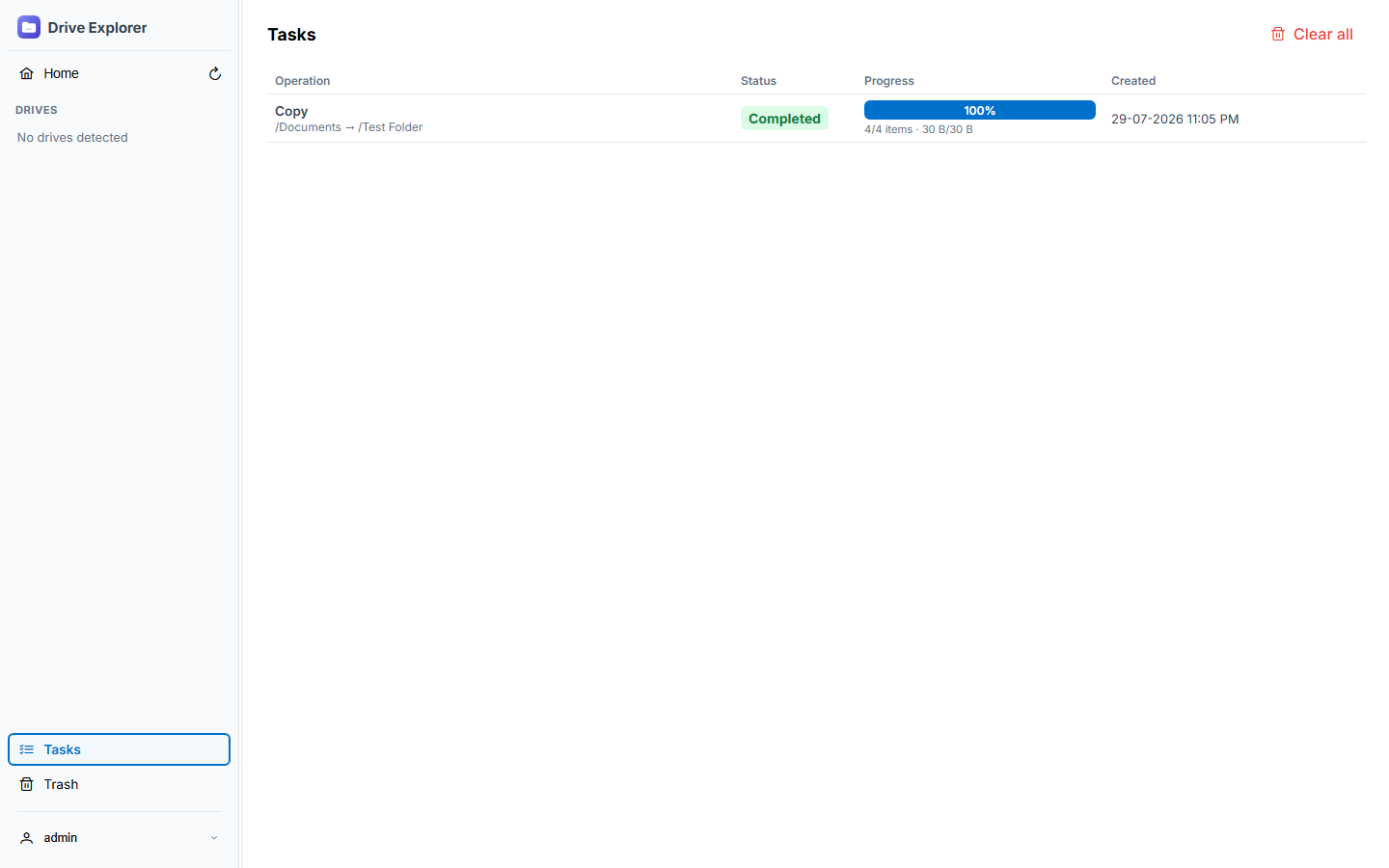
Copy, move, and delete run as background jobs processed by a parallel worker pool that keep going even if you close the tab, with live progress on the Tasks page pushed over SignalR. Moves within the same drive are instant — a plain rename instead of a byte-for-byte copy.
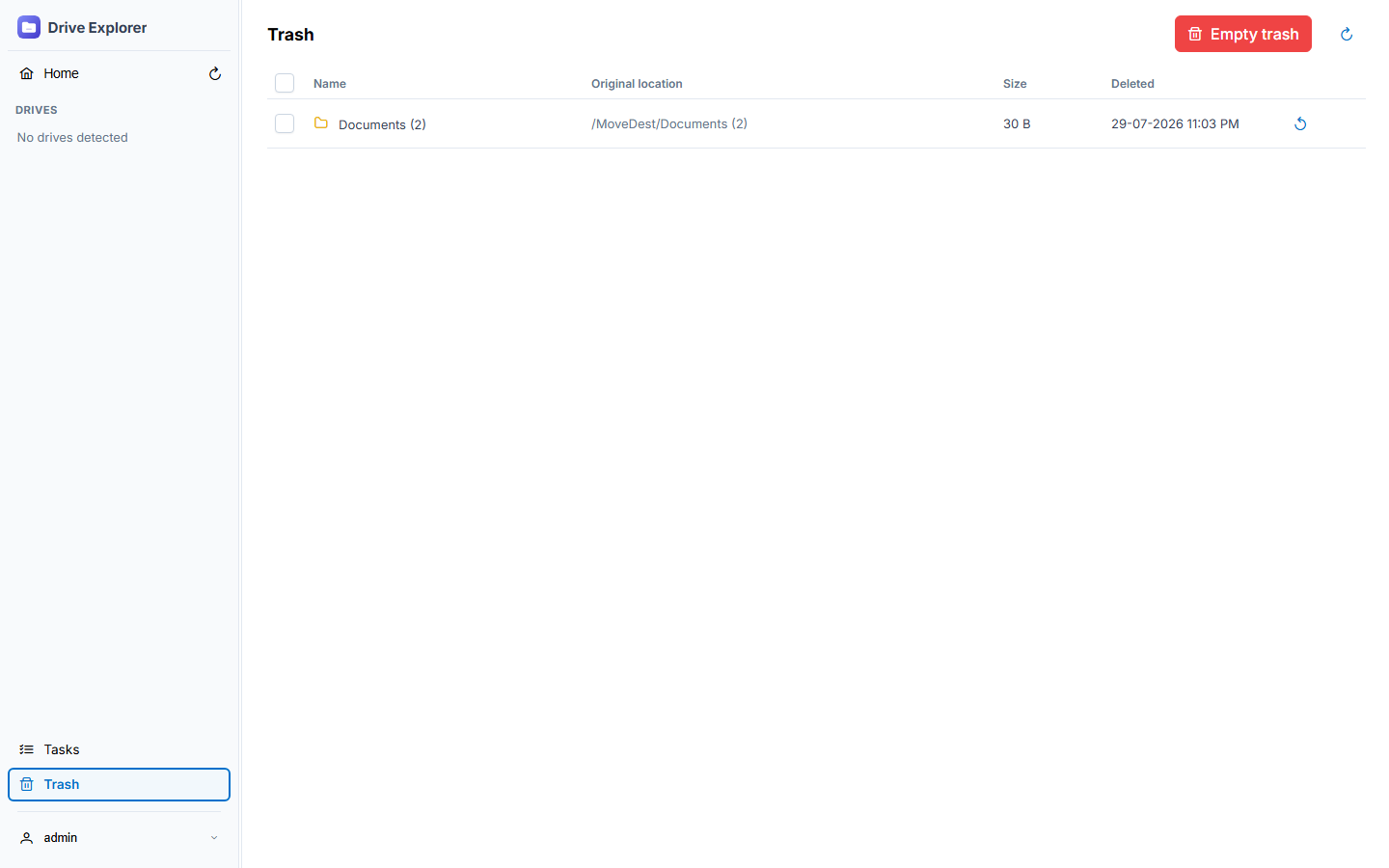
Deleting moves items to a per-drive hidden Trash instead of removing them immediately — restore or permanently purge from the dedicated Trash page.
Left-hand drive list with free-space usage bars. The sidebar is resizable and its width is shared across Explorer, Tasks, and Trash.
Newly connected drives appear in the sidebar under "Ready to mount" for one-click mounting; mounted drives get an eject button to unmount safely, restricted server-side to devices under /mnt.
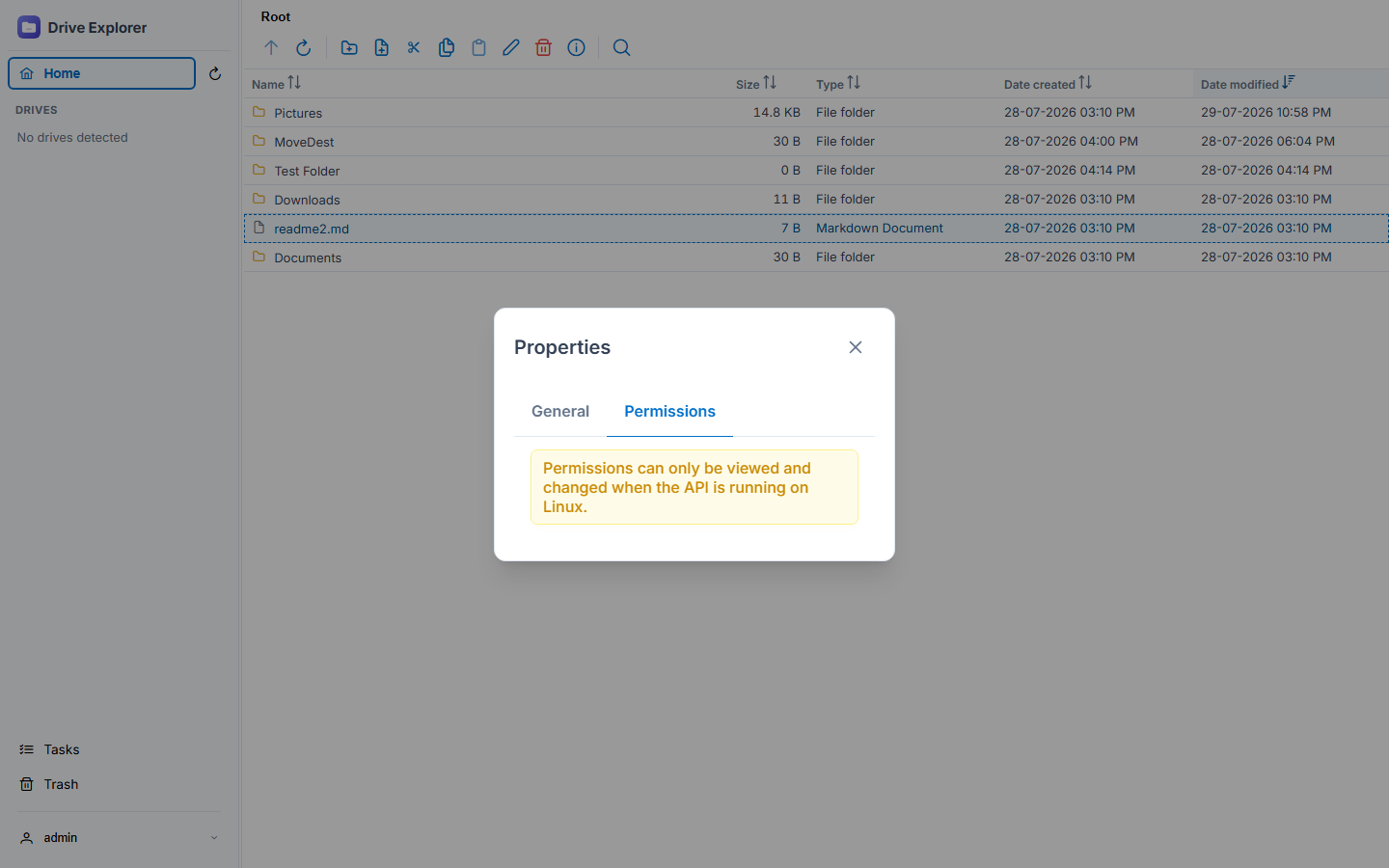
A Properties dialog shows size/type/dates, plus a Permissions tab to view and change owner, group, and rwx bits (chmod/chown) when the API runs on Linux.
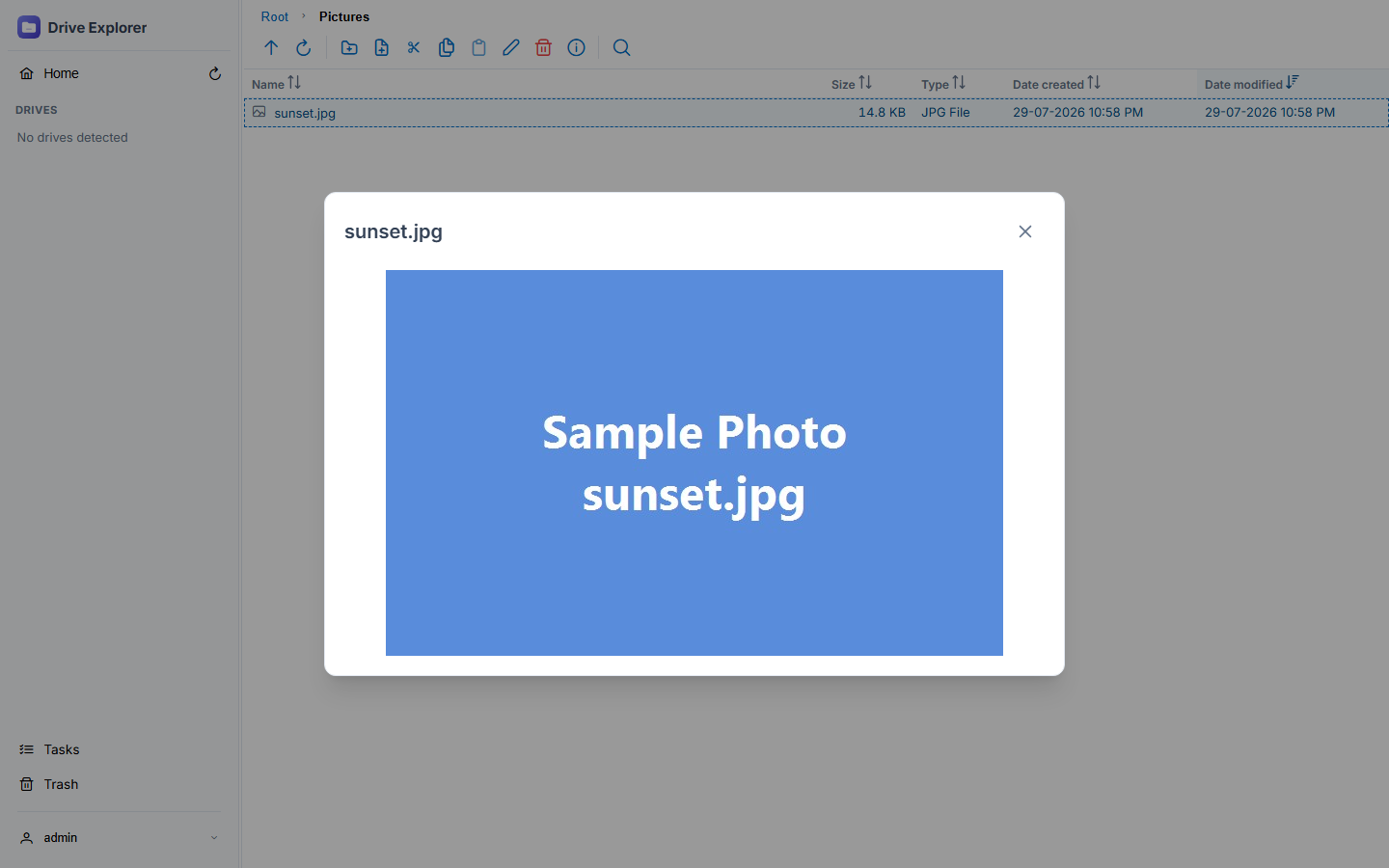
Inline preview for images, text, PDF, audio, and video, without ever leaving the folder listing.
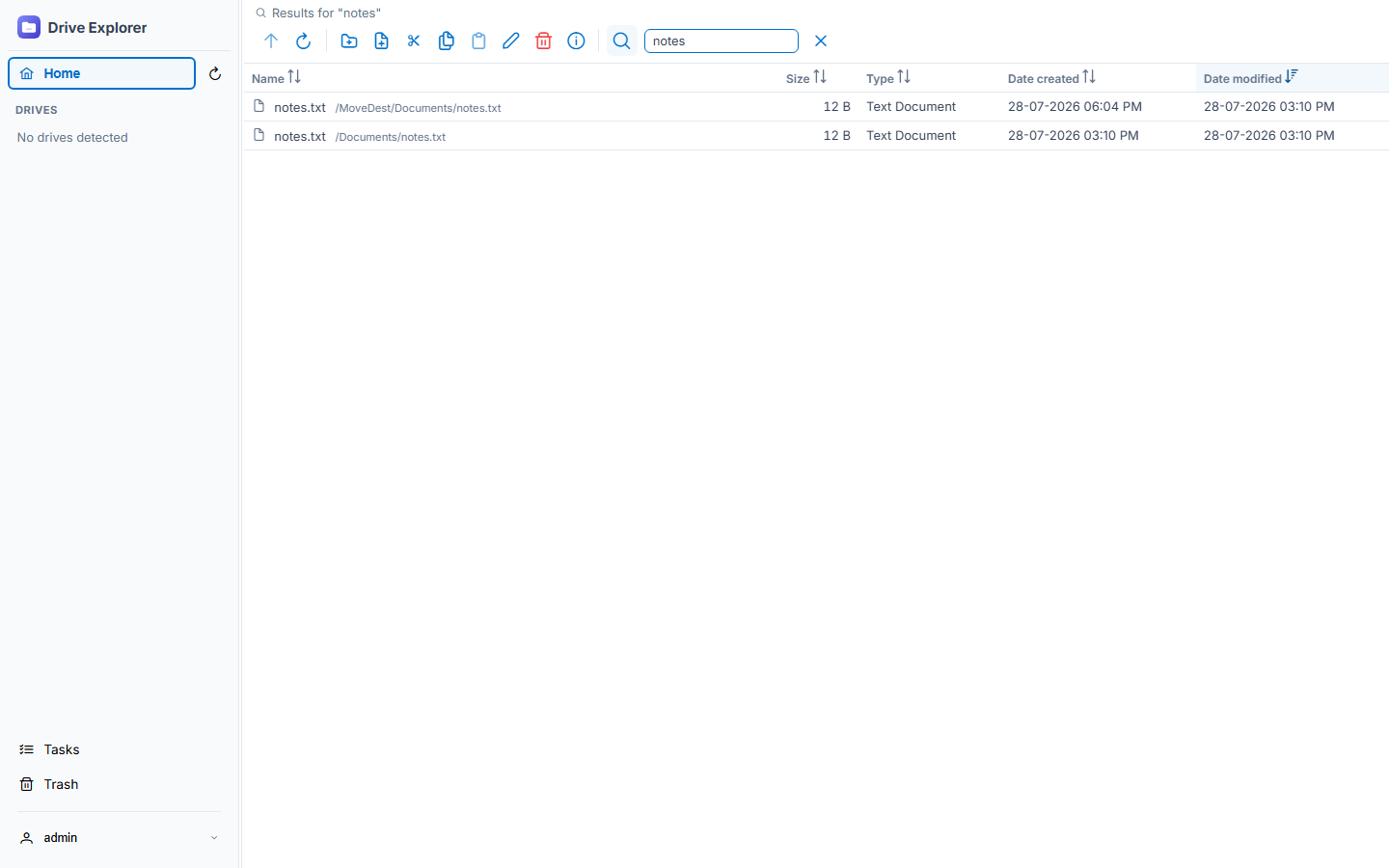
Search the current folder and everything beneath it — instant type-ahead search finds what you need without switching views.
Login with a change-password flow baked in — no anonymous access. Bring your own reverse proxy for TLS termination.
Dedicated buttons for uploading files or whole folders, plus native drag-and-drop straight from Windows Explorer or your OS file manager — nested folders upload recursively.
Switch between light and dark themes from the user menu, and pick a green, blue, or violet accent — both choices are saved to your profile and applied instantly, even on the login screen, with no flash of the default.
Screenshots straight from the local dev sandbox — the same views you get once it's running against your own drives.
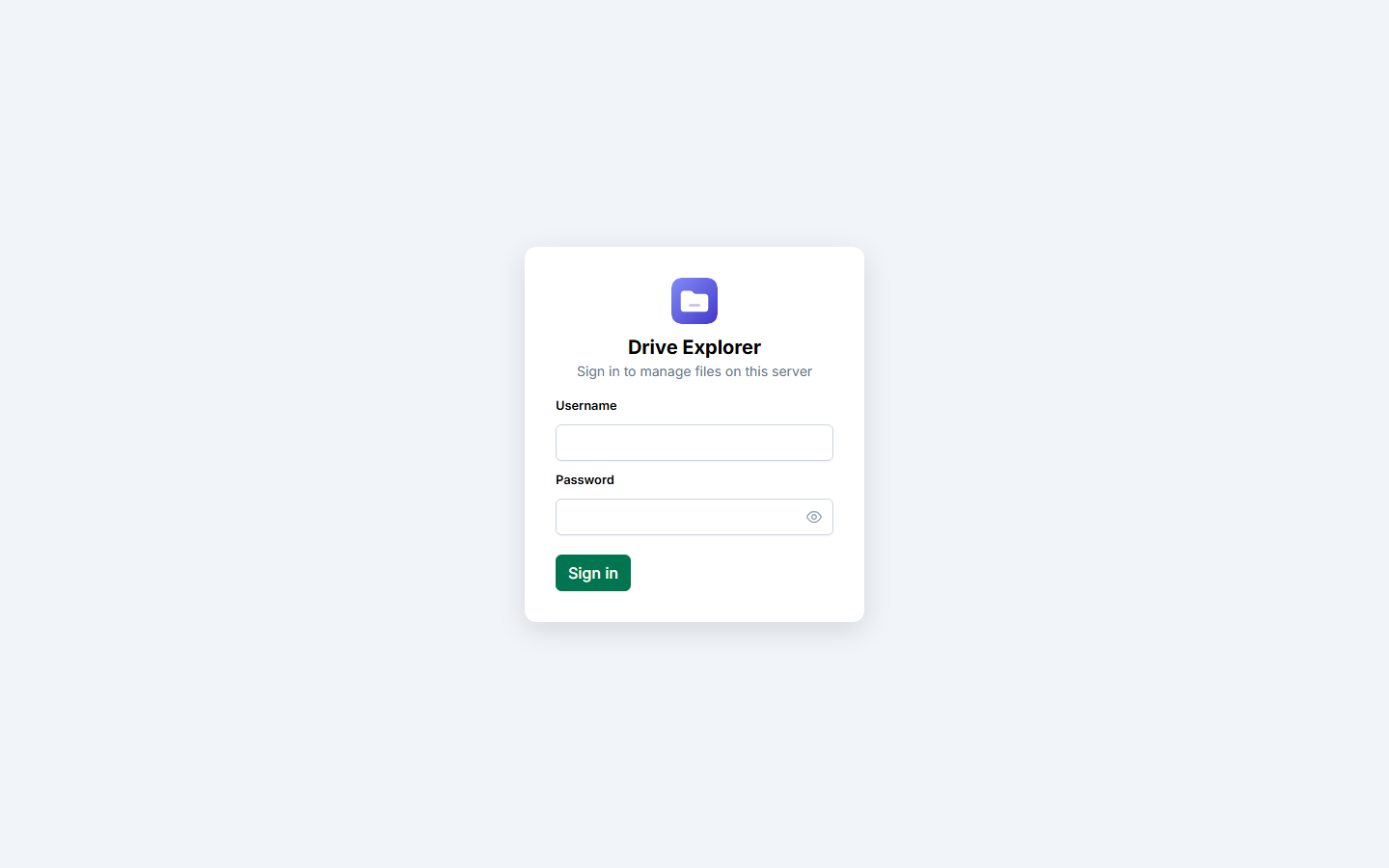
The API treats one configured physical directory as its "root"
(FileSystem:RootPath, default /host_root) —
every path the client sees is relative to that. In Docker, the host's real
/ is bind-mounted there, so the API can reach anything the host can.
The API is designed to run as root so it can browse, chmod, and
chown anywhere on the host. Keep it off the public internet, put it behind a
trusted network/VPN, and always set a strong JWT_KEY and admin
password.
Mounting/unmounting removable drives from the UI goes a step further: the API
container runs privileged: true with pid: host so it can
nsenter into the host's own namespaces to run mount/umount —
a mount issued from inside the container's own namespace would never be visible on
the host. Mount/unmount is restricted server-side to devices under /mnt only.
# backend — ASP.NET Core 10 Web API
backend/FileExplorer.Api/
├── Controllers/        # auth, files, drives, operations,
│                        # tasks, trash, permissions, search
└── Services/Jobs/      # background job queue + worker

# frontend — Angular (standalone + signals) + PrimeNG
frontend/src/app/
├── features/           # shell, explorer, tasks, trash, login
└── core/                # axios client, auth, typed API services

# two containers, wired by docker-compose.yml
api   Kestrel · EF Core · SQLite · SignalR
web nginx serving Angular + proxying /api /hubsClick a row, or Tab into the grid, to give the listing focus — then everything below just works.
The recommended path is Docker Compose — two containers, wired together, nothing else to install.
git clone https://github.com/pavangayakwad/linux-drive-explorer.git
cd linux-drive-explorercp .env.example .env
openssl rand -base64 48 # paste output into JWT_KEYBy default the entire host filesystem (/) is bind-mounted into the API container at /host_root. Narrow this in docker-compose.yml if you only want specific paths exposed.
docker compose up -d --buildNavigate to http://<host>:8080. If ADMIN_PASSWORD was left blank, fetch the generated password from the logs:
docker compose logs api | grep -A2 "Password:"Self-hosted, open source under Apache 2.0, and built to sit behind your own VPN or reverse proxy.